1. Export a TXT marker file from Adobe Prelude Live Logger
In the Adobe Prelude Live Logger app go to export and save the TXT file.
2. Use the "Convertidor de marcadores" to convert the TXT marker file into a CSV file
Open the free Convertidor de marcadores, select "Adobe Prelude Live Logger > Marker (.txt)" and set "convert" to "CSV for Google Sheets". Generate and download the file. Si tienes problemas para convertir el archivo, puedes ponerte en contacto con el soporte gratuito.
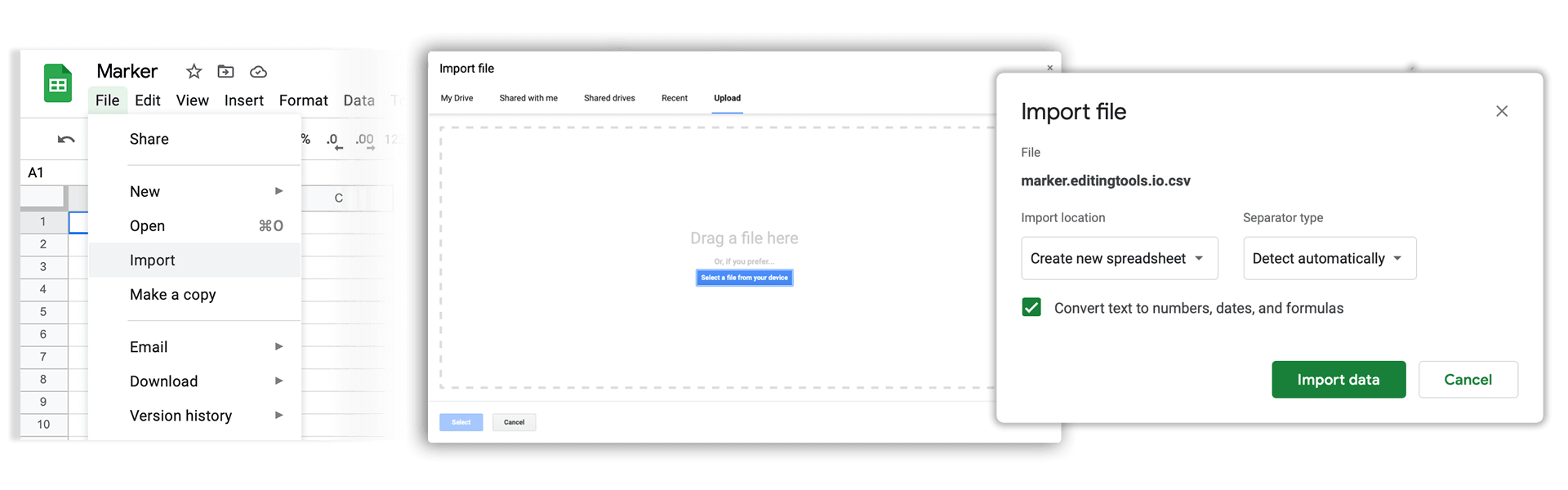
3. Import the CSV file into Google Sheets
Open Google Sheets and go to "File -> Import". Upload the generated CSV file and press "Import Data" to generate the Sheet with all markers.
🚀 Listo
¡Eso es todo por ahora! Si este tutorial te ha resultado útil, compártelo para apoyarnos. Si tienes alguna sugerencia para mejorar el flujo de trabajo, ¡cuéntanoslo!